
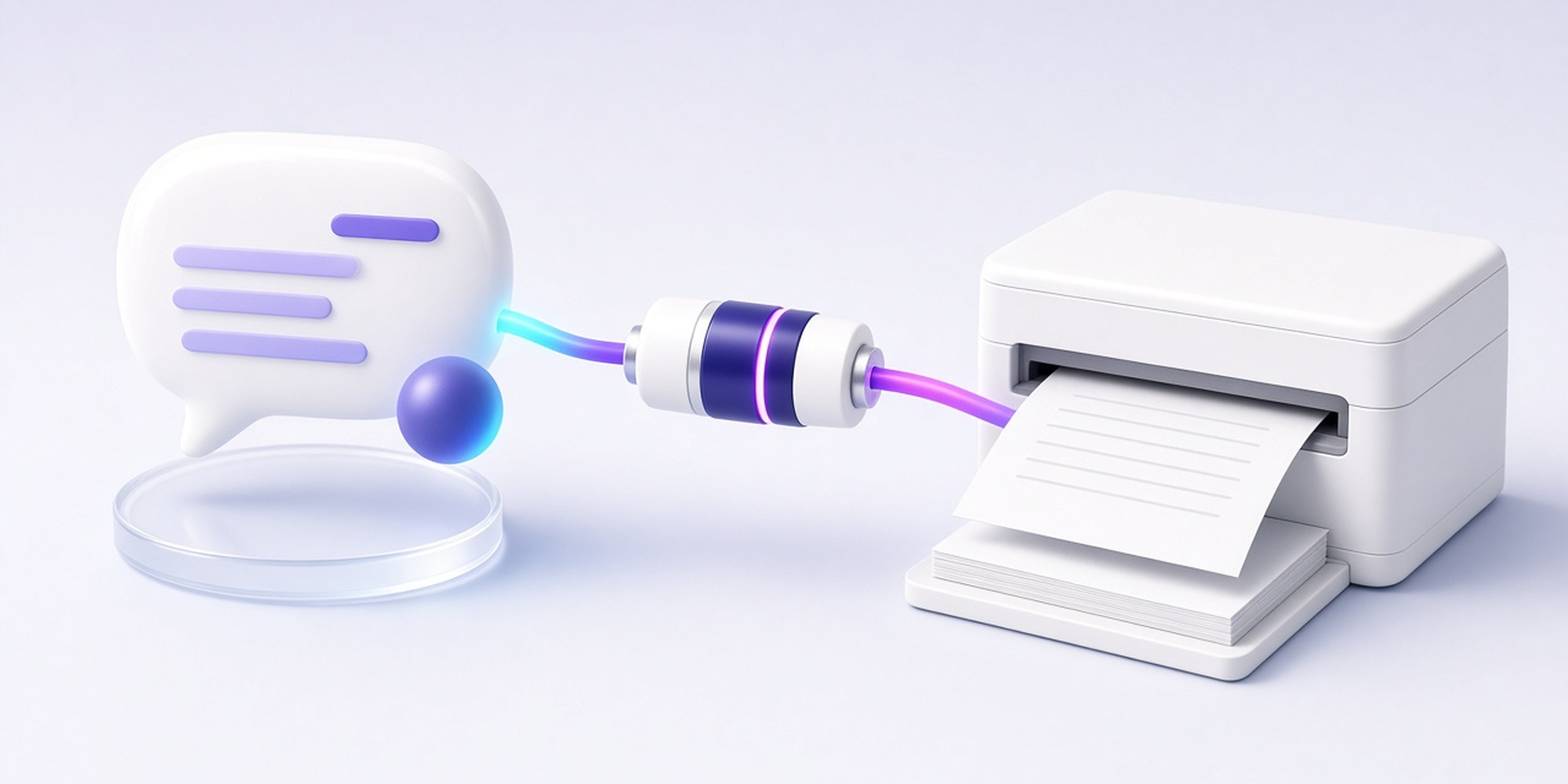
You already draft letters, invoices, and notices in your AI assistant. Getting them into the mail still meant leaving that conversation: export a file, open another tab, and fill in a form.
You can now send physical mail directly from Claude, ChatGPT, and other AI assistants. Connect your DocuPost account once, then ask in plain English. The assistant can write the letter, check the price, mail it, and tell you when it is on its way. No code, no forms, and no trip to the post office.
What this is
This works through the Model Context Protocol, or MCP — an open standard that lets AI assistants connect to other services. DocuPost now provides an official MCP server, so those assistants can use your DocuPost account the same way they use other tools you connect. You do not have to write any code to get started. If you already build with the DocuPost API, the same server is also available in developer tools such as Claude Code, Cursor, and VS Code.
Once you are connected, your assistant can write and send letters and postcards, quote a price, look up or cancel mail, and check your balance. It also works with mail you already sent from the DocuPost dashboard.
Checks are a special case: apps you connect with a sign-in button cannot send them, but developer tools that use an API token can. Those checks are held for your approval in the dashboard unless you ask otherwise.
Who it’s for
If you already write correspondence in an AI assistant, this closes the gap between a finished draft and a mailed letter.
- Anyone who drafts in Claude or ChatGPT and would rather send the letter from that same conversation.
- Legal, finance, property, and operations teams mailing notices, invoices, or formal correspondence.
- Healthcare organizations that need mailing to stay secure. DocuPost is HIPAA-compliant and offers a signed BAA.
- Developers connecting DocuPost to agent workflows in Claude Code, Cursor, or VS Code.
What you can ask
Once DocuPost is connected and turned on in a chat, try requests like these:
- “Write a friendly reminder to my tenant at 12 Oak St, Springfield, IL 62701 that rent is due on the 1st, and mail it.”
- “Mail this invoice to Acme Supply, 400 Pine Ave, Denver, CO 80202, certified with return receipt: https://example.com/invoice-1042.pdf”
- “How much would it cost to send 500 postcards?”
- “Has my letter to the county been delivered yet?”
Give full addresses, including the ZIP code. The assistant will not guess missing details; it will ask. Say if you want first class, certified, priority, color, or double-sided printing. Otherwise, DocuPost uses its defaults: USPS First Class, black and white, and double-sided.
You cannot attach a file from the chat, so share a link to the PDF instead. Google Drive and Dropbox links must be set to “anyone with the link.” Letters the assistant writes for you work best under about three pages. You cannot send to contacts in your DocuPost address book from the assistant; paste the address instead.
How to connect your assistant
You need a DocuPost account. When you connect an assistant, DocuPost sets everything else up. To try it without sending real mail, turn on Sandbox Mode in Account Settings → API. Sandbox mail is never printed, mailed, or billed. Turn it off when you are ready to send.
Connect Claude
This works in Claude on the web (claude.ai), desktop, and mobile.
- In Claude, open Settings → Connectors and choose Add custom connector.
- Name it DocuPost and paste this address:
https://api.docupost.com/mcp - Click Add, then Connect.
- A DocuPost window opens. Log in if asked, check that it says Claude, and click Allow.
- Start a new chat. In the chat’s tools menu, make sure DocuPost is switched on, then ask away.
On Claude Team and Enterprise plans, an owner may need to add the connector for the organization first, under Connectors in the organization’s admin settings.
Connect ChatGPT
- In ChatGPT, open Plugins, click Add, and choose Add custom MCP server.
- Name it DocuPost and paste this address:
https://api.docupost.com/mcp. If it asks how to sign in, choose OAuth. - Save, then sign in to DocuPost when asked and click Allow.
- In a new chat, make sure DocuPost is turned on, then ask away.
ChatGPT changes these menus from time to time. If the names do not match, look for Plugins, Apps, or Connectors. On Business and Enterprise plans, a workspace admin may need to allow custom servers first.
Other assistants and developer tools
Any app that supports MCP can use DocuPost. Give it the address https://api.docupost.com/mcp. If it asks how to sign in, choose OAuth, or use your API token from Account Settings → API. Developer tools such as Claude Code, Cursor, and VS Code can send that token in the request header. In Claude Code:
claude mcp add --transport http docupost https://api.docupost.com/mcp --header "Authorization: Bearer $DOCUPOST_API_TOKEN"
The same address and token work in a Cursor or VS Code MCP config. See the AI Assistants (MCP) docs for the JSON snippet and the full list of tools.
You stay in control
Nothing is mailed without your approval. The assistant shows you the address, options, and price first, and your app asks you to approve before anything is mailed or canceled.
- No accidental duplicates. If the same request is repeated within 10 minutes, nothing extra is mailed.
- Easy to undo. Mail that has not been printed yet can be canceled by asking, or from your dashboard.
- Easy to disconnect. Disconnect an app at any time in Account Settings → API → Connected AI apps. Regenerating your API token disconnects every connected app at once.
Ready to send mail from the conversation you are already in
Draft the letter, check the price, and send it — without leaving your AI assistant, and without a trip to the post office. We’ll take care of the rest. If you do not have an account yet, you can start free.